Layers
A big ghost hides the spot you are working on. Layers let you see only part of a locked placement: a fixed range of layers, or everything up to your feet. The in-hand filter goes further and shows only the blocks you hold.
Layers and the in-hand filter only work on a locked placement. Each placement keeps its own setting. When you unlock a placement it shows in full again, and when you lock it again its layers come back as they were.
What a layer is
Section titled “What a layer is”Layers are the horizontal slices of a placement, counted from 0 at its bottom. A placement 12 blocks high has layers
0 to 11. The overlay names them, for example Layers 4-6 of 12.
Hidden layers are treated as air, so the visible layers are drawn with their tops and bottoms. You never see holes where hidden blocks used to be.
Layer modes
Section titled “Layer modes”| Mode | Shows |
|---|---|
| Off | Every layer. This is the default. |
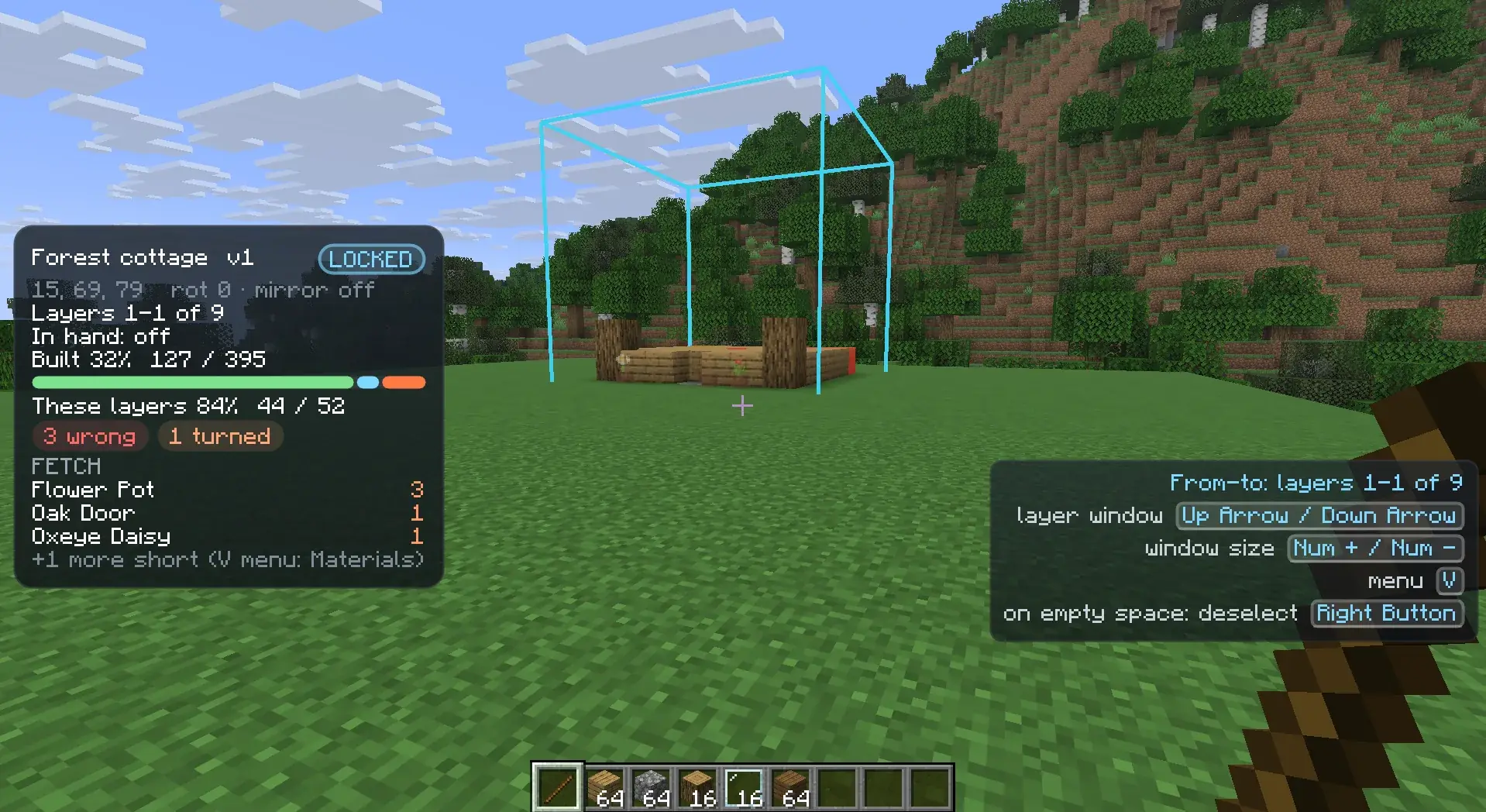
| From-to | A fixed range of layers, from a bottom layer to a top layer. |
| Follow feet | Every layer from the bottom up to just above your feet. It moves as you climb. |
Choosing a mode
Section titled “Choosing a mode”- On the wheel: press V, pick Layers, then Off, From-to or Follow feet. The current mode is marked.
- With the Cycle layer mode key: each press steps from Off to From-to to Follow feet and back to Off. Shift steps the other way. This key has no default; bind one in Options → Controls.
From-to
Section titled “From-to”The first time you pick From-to, the range is the single layer at your feet (layer 0 if you stand below the placement). Then:
| Key | What it does |
|---|---|
| ↑ / ↓ | Moves the whole range one layer up or down. It stops at the bottom and top layer. |
| Numpad + | Raises the top of the range by one layer. |
| Numpad - | Lowers the top of the range by one layer. The range is never smaller than one layer. |
So to build layers 4 to 6, start with layer 4 and press Numpad + twice.
Follow feet
Section titled “Follow feet”Follow feet shows layer 0 up to the layer you stand on plus an offset. The offset is 1 by default, so you see the layer at your feet and the one above. It updates as you move up and down.
| Key | What it does |
|---|---|
| Numpad + | Raises the offset by one, up to 16. An offset of 2 reaches head height. |
| Numpad - | Lowers the offset by one, down to 0. At 0 you only see up to the layer you stand on. |
If you stand below the placement, only layer 0 shows.
Layer keys
Section titled “Layer keys”On a locked placement the arrow and numpad keys change its layers instead of moving it:
| Key | From-to | Follow feet | Off |
|---|---|---|---|
| ↑ / ↓ | Move the range | Nothing | Nothing |
| Numpad + / Numpad - | Change the range’s top | Change the offset | Nothing |
| ← / → | Nothing | Nothing | Nothing |
| Cycle layer mode (not bound) | Next mode | Next mode | Next mode |
These keys work without the remote too, as long as a locked placement is selected and no screen is open. So you can change layers while holding blocks. Without the remote, the action bar shows the new mode, the visible layers and the placement’s height after each change.
These are the same keys as Move placement away, Move placement closer, Move placement up and Move placement down in Options → Controls. Rebinding them there changes them for layers too. See Keys.
While you hold the remote, the key hint list starts with a header for the current mode:
Layers: offFrom-to: layers 4-6 of 12Follow feet +1: layers 0-4 of 12
In-hand filter
Section titled “In-hand filter”With the in-hand filter on, the ghost shows only the blocks in your hotbar:
- Blocks that match the item in your hand show at the normal ghost opacity.
- Blocks that match your other hotbar items show dimmed.
- Everything else is hidden.
Scroll through your hotbar and the ghost changes with each slot. While you hold the remote, only the dimmed hotbar blocks show.
An item matches every block it places, in any orientation, and the blocks the plan accepts it for. For example:
- Dirt matches dirt, grass blocks, dirt paths and farmland.
- An oak log matches stripped oak logs, but not stripped spruce logs.
- White concrete powder matches white concrete.
Turning it on
Section titled “Turning it on”- On the wheel: pick Options, then In-hand filter. It is tinted green while it is on.
- With the Toggle in-hand filter key. It has no default; bind one in Options → Controls. The key works with or without the remote, while a locked placement is selected.
The overlay shows In hand: on or In hand: off. The filter is kept per placement.
Hotbar opacity
Section titled “Hotbar opacity”[layers] hotbarOpacity sets how visible the blocks of your other hotbar items stay, as a share of
the ghost opacity. The default is 0.33, a third. At 1 they look the same as the block in your hand.
Layers and the filter together
Section titled “Layers and the filter together”The layer mode and the in-hand filter combine. A block shows only when it is in a visible layer and passes the in-hand filter.
Mistake boxes only show in visible layers too, but the in-hand filter never hides them. A wrong block is boxed whatever you hold.