Placing and moving
A placement is one schematic version put into your world as a see-through ghost. You can have many placements in a world. Each one keeps its own position, rotation, mirror and material swaps.
Placements are only on your computer. Nobody else sees them, and the server doesn’t need Heavymatica.
Starting a placement
Section titled “Starting a placement”- Press H to open the library, or right-click with the remote at empty space while no placement is selected.
- Select a schematic and, for a cloud schematic, the version.
- Click Place.
The library closes and a ghost of that version appears at your crosshair, selected and following. If you are not
holding the remote, a message such as Hold a Stick to place tells you to take it. The ghost shows once you do.
A placement always stays on the version you placed. Uploading a newer version later doesn’t change it.
The three states
Section titled “The three states”Every placement is in one of three states. The overlay shows the state as a badge, and the selected placement’s outline has a colour for its state.
| State | What it means |
|---|---|
| FOLLOWING | The ghost sits on the block you look at and moves with your crosshair. |
| ANCHORED | The ghost stays where you put it. You can still nudge, rotate and mirror it. |
| LOCKED | The ghost is fixed for building. It compares itself with the world and can show only some layers. |
Following and anchoring
Section titled “Following and anchoring”A following placement puts its bottom on top of the block face you look at, centred on that block, up to 64 blocks away. When you look at the sky, it stays where it was. It only shows while you hold the remote.
- Right-click with the remote to anchor it where it is.
- Sneak + right-click on an anchored placement releases it. It follows your crosshair again.
While it follows, Numpad + and Numpad - raise or lower it against the block you look at. That offset stays until you anchor it, which helps when you want a build to sit in the ground or float above it.
Moving
Section titled “Moving”While you hold the remote and the selected placement is anchored:
| Key | Moves it |
|---|---|
| ↑ | One block away from you |
| ↓ | One block towards you |
| ← / → | One block to your left or right |
| Numpad + / Numpad - | One block up or down |
The arrow keys follow the way you look, snapped to the nearest of north, east, south and west. Hold Shift to move 10 blocks per press. Hold a key down to keep moving.
Rotating
Section titled “Rotating”Press R to turn the placement 90° clockwise, or Shift + R to turn it counter-clockwise. It turns around the middle of its footprint, so it stays roughly where it was. Stairs, logs and other blocks turn with it. This works while the placement is following or anchored.
Mirroring
Section titled “Mirroring”Press M to step the mirror through off, left-right and front-back. The footprint stays where it is. This works while the placement is following or anchored.
All movement keys can be rebound in Options → Controls. See Keys.
Selecting a placement
Section titled “Selecting a placement”Only one placement is selected at a time. The keys, the wheel and the overlay always act on the selected one, and it gets a coloured outline.
- Right-click a ghost with the remote to select it. Its box counts, up to 64 blocks away. If you stand inside a box, that one wins; between several boxes you stand in, the smallest wins.
- Right-click at empty space to deselect. The placement stays where it is.
- Right-clicking the placement that is already selected changes nothing.
Selecting doesn’t work while a placement is following: the right-click anchors it first.
Locking and unlocking
Section titled “Locking and unlocking”Lock a placement when it is where you want to build it. A locked placement can’t be moved, raised, lowered, rotated, mirrored, released or removed, so you can’t nudge it by accident while building.
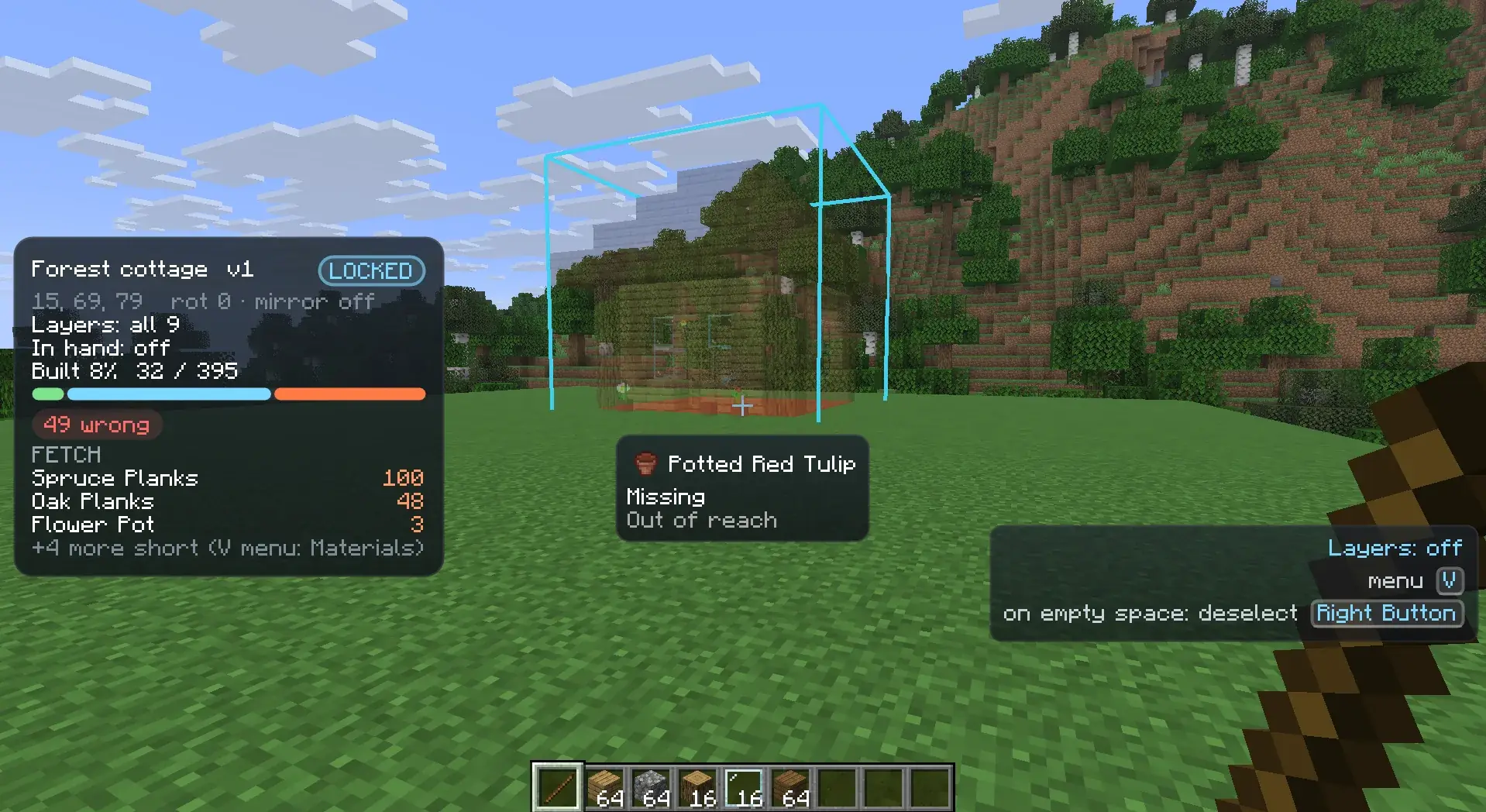
To lock, with an anchored placement selected, open the wheel with V and pick Lock. Or bind the Lock / unlock placement key in Options → Controls; it has no key by default. Locking also works without the remote in your hand.
Once locked, the placement starts the world comparison and you can pick layers.
To unlock, hold the remote and either:
- pick Unlock on the wheel, then Yes, or
- press your bound lock / unlock key twice within 3 seconds. After the first press the hints say
press again to unlock.
Unlocking needs the remote in your hand. The placement goes back to anchored and shows its whole ghost again. Its layer setting is kept for the next time you lock it.
Removing
Section titled “Removing”| State | How to remove it |
|---|---|
| Following | Pick Cancel on the wheel, or press your bound remove key once. It goes at once. |
| Anchored | Pick Remove on the wheel, then Yes. Or press your bound remove key twice within 3 seconds; after the first press the hints say press again to remove. |
| Locked | Unlock it first. A locked placement is also removed on its own when it finishes. |
The Remove placement key has no default. Bind one in Options → Controls if you want it.
Ghost opacity
Section titled “Ghost opacity”One setting decides how see-through every ghost is: [ghost] opacity, from 0.05 (barely visible)
to 1 (solid), 0.4 by default.
To change it in game, open the wheel and pick Opacity, then a step such as 60%. The current step is marked. The change shows on every ghost at once and is saved for the next time you play.
The steps on the wheel come from [ghost] opacitySteps, by default 20%, 40%, 60%, 80% and 100%. You
can set 2 to 8 steps between 0.05 and 1.
Big schematics
Section titled “Big schematics”Heavymatica draws at most [ghost] blockBudget ghost blocks at once, across all placements (300,000
by default). Placements that don’t fit are drawn as box outlines only, so the game stays smooth. Lower the budget if
your game gets choppy near large builds.
What the ghost shows
Section titled “What the ghost shows”The ghost shows the schematic’s blocks as they will be built: chests, beds, signs and banners with their own look, water and lava, and grass and leaves in plains colours. Signs show without their text. Barriers, light blocks and structure voids stay hidden.
Blocks your game doesn’t know, for example from a mod you don’t have, show as missing-texture cubes. The overlay counts
them. Hide them with Options → Unknown blocks on the wheel, or [ghost] showUnknownBlocks.
The block under your crosshair
Section titled “The block under your crosshair”On a locked placement you can point at a ghost as if it were a real block.
Targeting HUD
Section titled “Targeting HUD”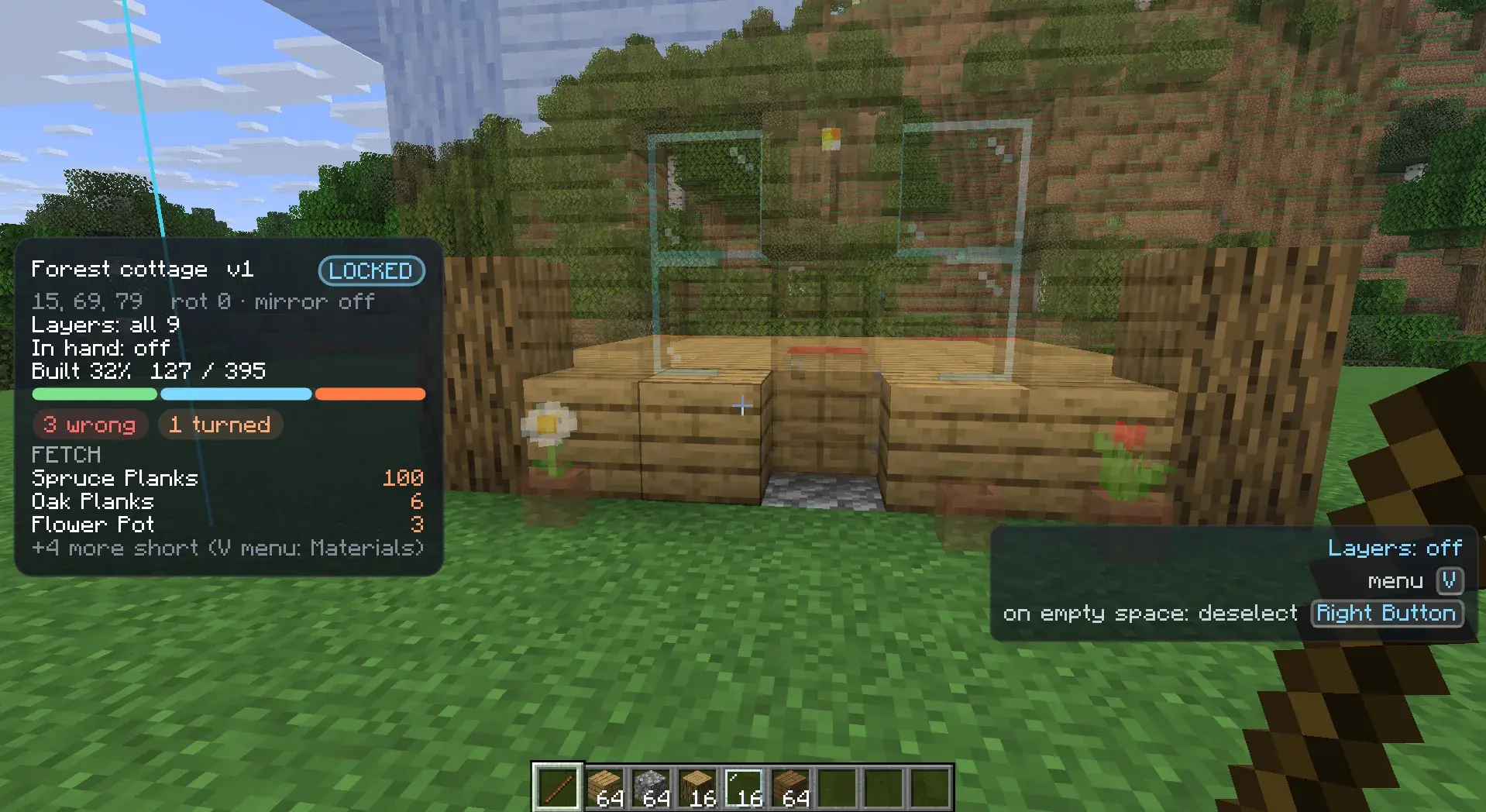
Look at a ghost, or at a boxed mistake, and a small HUD under your crosshair shows:
- the planned block’s icon and name, such as
Oak Stairs - its orientation, such as facing north and half bottom, and whether it is waterlogged
- its state in the comparison colours, such as
Missing,Wrong block: Dirt,Needs a shovelor1/3for candles - the placement’s name, when it is not the selected one
Out of reachwhen the ghost is farther than you can reach
The HUD looks through blocks that are already built and stops at the first ghost or at a real block that belongs to no placement. Ghosts of following and anchored placements, and positions that already match, are not targeted.
[targeting] hudRange sets how far away ghosts get named, 32 blocks by default, up to 128. Set it to
0 to turn the HUD off. With Jade installed, Jade’s tooltip shows the ghost instead.
Pick block on ghosts
Section titled “Pick block on ghosts”Middle-click (the game’s Pick Block control) a ghost within reach, and Heavymatica puts the item for the planned block into your hand. This works on any server.
- If the item is in your hotbar, that slot is selected.
- If it is in your inventory, it is swapped into the hotbar slot that vanilla’s pick block would use.
- If you carry a replacement the plan accepts, such as dirt for a grass block, that is picked when you don’t have the block itself.
- In creative, you get the block even if you don’t carry it.
- If the item is only inside a shulker box or bundle you carry, the action bar tells you which container it is in, and nothing in your inventory moves.
- If you don’t carry it at all, the action bar says
You have no Oak Stairs.
Sneak while you middle-click to pick the real block behind the ghost instead. Turn ghost picking off with
[targeting] pickBlock.
Saved per world
Section titled “Saved per world”Anchored and locked placements are saved for each singleplayer world and for each server address. When you come back, they are where you left them, unselected, with their rotation, mirror, swaps, lock and layers. Following placements are not saved.
Placements from one server don’t show on another. A placement in the Overworld doesn’t show in the Nether.
If a placement’s schematic can’t be loaded, for example because you are offline and it isn’t cached, or it was deleted
from the library, the placement shows as an outline and the overlay says Version unavailable: offline or deleted.
It loads again once the cloud is reachable.