Materials
While you build a locked placement by hand, Heavymatica keeps a material list for it: for every item, how many the build still needs, how many you have, and how many you are short. You see the biggest shortages in the overlay and the full list in the materials screen. The same screen also lets you swap the schematic’s blocks for others, for example spruce instead of oak.
What counts
Section titled “What counts”The material list only exists while the selected placement is locked. Following and anchored placements have none.
It counts what is still left to do, not the whole schematic:
- A position counts when its block is missing, when the wrong block stands there, or when Heavymatica hasn’t compared it with the world yet. Parts of the build in chunks that aren’t loaded count in full.
- A position that is only partly done counts only the rest. Two of three planned candles need one more candle. A bottom slab where a double slab is planned needs one more slab.
- A position that matches, is only turned the wrong way, has too many, or only needs a finishing step needs no item. Stairs facing east where the plan has them facing north need no new stairs.
- Only the layers you can see count. If you show layers 4 to 6, the list counts only what layers 4 to 6 still need. In follow feet mode the list grows as you climb. See Layers.
- The in-hand filter does not change the list.
Some blocks count differently from one item per position:
| Block | Counts as |
|---|---|
| Doors, beds, tall plants | One item for both halves |
| Double slab | Two slabs |
| Candles, sea pickles, snow layers | As many items as the block has |
| Potted plant | One flower pot and one plant |
| Candle cake | One cake and one candle of the same colour |
| Water, lava or powder snow cauldron | One cauldron and one matching bucket |
| Grass block, dirt path, farmland | Dirt |
| Stripped logs and wood | The unstripped log or wood of the same type |
| Concrete | Concrete powder of the same colour |
Blocks that the same item places add up in one row. Twenty dirt paths, ten farmland and five grass blocks show as 35 dirt.
Can’t carry
Section titled “Can’t carry”Some blocks have no item that places them: water and lava sources, fire, portals, piston heads and the like. They are listed in a separate Can’t carry part with how many positions still need them. They never show as a shortage.
What you have
Section titled “What you have”“Have” is everything you carry:
- your main inventory and hotbar
- your offhand
- the contents of shulker boxes and bundles you carry, also nested ones
- the contents of other carried items that hold items, when the mod that adds them lets other mods look inside
Each item counts once, even inside nested containers. Chests and other containers in the world don’t count, even right next to you. If you carry 10 oak planks and a shulker box with 64 more, you have 74.
Blocks the game lets you swap in count toward what you have. For a planned grass block, a grass block you carry counts as well as dirt. For planned concrete, both concrete and concrete powder count. The other way round does not work: concrete you carry does not count for planned concrete powder. Each carried item counts toward one planned block only, so nothing counts twice.
The overlay
Section titled “The overlay”While you hold the remote with a locked placement selected, the overlay shows a Fetch section with up to three items you are shortest on, largest first. When you carry everything the visible layers still need, it says Nothing short.
If more items are short, a line says how many more, for example +2 more short (K: Materials). It names the materials key
when you have bound one, or the wheel key and its Materials segment when you haven’t.
The materials screen
Section titled “The materials screen”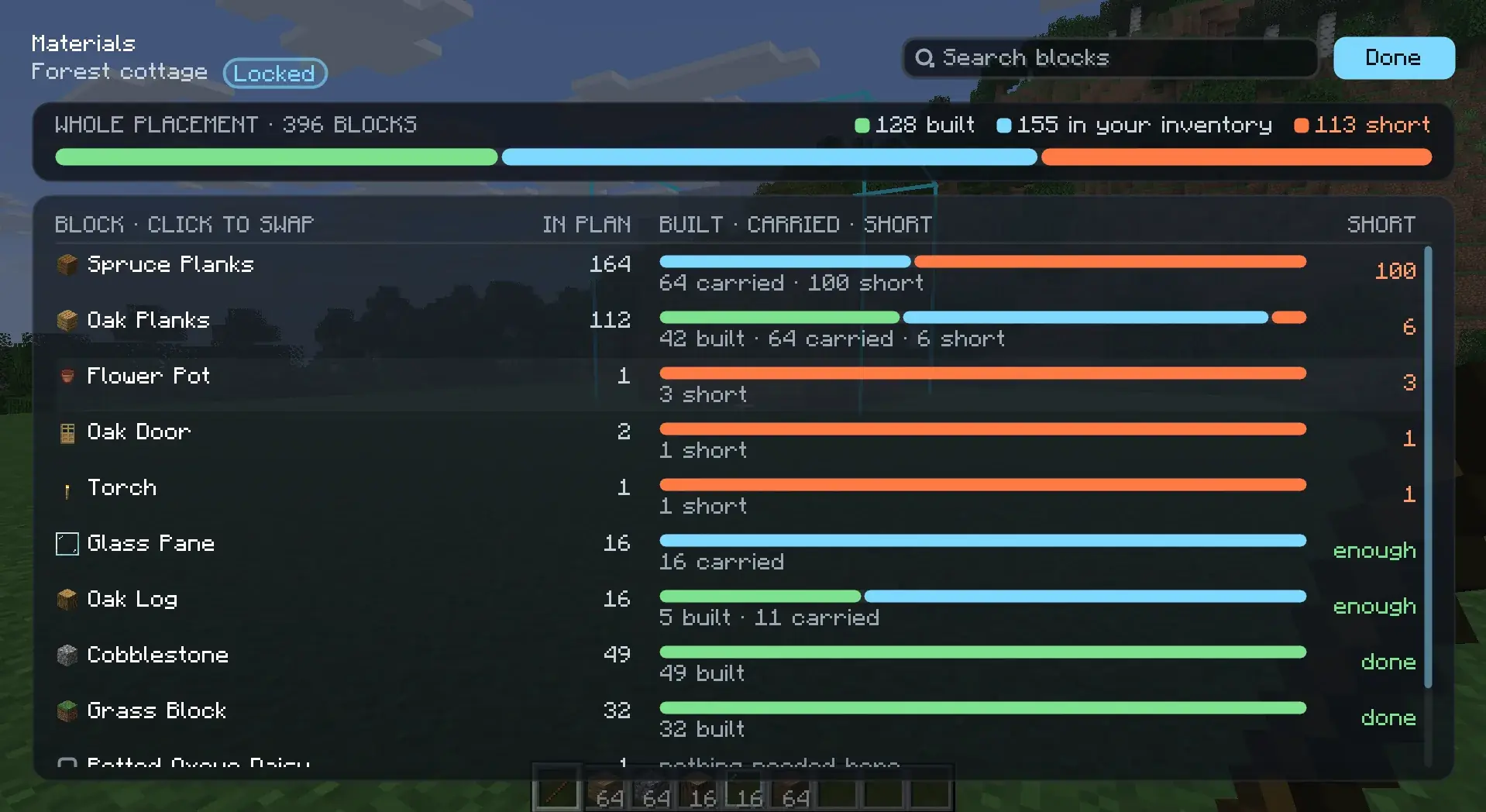
Open it with the remote in your hand:
- pick Materials on the placement wheel (V), or
- press the Open materials key. It has no key by default; bind one in Options → Controls. See Keys.
It works for the selected placement in every state. With no placement selected, the key tells you to select one first. The screen doesn’t pause the game and updates while it is open, so you can pick up items and watch the counts change.
Each row is one block type of the schematic, with how many positions use it and what it shows as. A search box at the top narrows the rows by block name or ID.
While the placement is locked
Section titled “While the placement is locked”Each row also shows Need, Have and Short, with a shortage above 0 in red. A bar per row shows the planned positions in the visible layers:
- green: already built
- blue: what you carry, up to what is still needed
- orange: what is short, with the number beside the bar
A bar at the top sums this for the whole placement. Rows are sorted by most short first, then most needed. The Can’t carry part follows.
A Finish column shows positions that are built but still need a finishing step, such as dirt paths that need a shovel, farmland that needs a hoe, logs that need an axe or concrete powder that needs water. See Comparison.
While it is not locked
Section titled “While it is not locked”Rows are sorted by most used first and show no need, have or short counts.
Swapping materials
Section titled “Swapping materials”You can replace a block type of a placement with another block, for example oak planks with spruce planks. The swap belongs to that placement only. The schematic itself doesn’t change, and you don’t need to upload anything.
- Open the materials screen.
- Click the name of the row you want to change. The block picker opens.
- Pick the new block. The swap applies at once and the picker closes.
In the picker:
- Blocks of the same kind come first as Suggested, for example other stairs when you swap stairs. All blocks follow.
- Type to search by name.
- Each block shows how many you carry, and says enough when that covers what the row needs. Below, the picker says whether the chosen block is enough or how many you would be short.
- Keep original takes the swap back.
- Esc closes the picker without a change.
A swapped row shows the new block in the accent colour. Hover it to see what it was swapped from. The undo button next to it resets the swap.
What a swap does:
- It changes every position of that block type, in every orientation. Stairs keep their facing, half and waterlogging when the new block has them too. Swapping stairs to planks just gives planks.
- Other block types stay as they are. Swapping oak stairs to spruce stairs leaves the oak planks oak.
- Swaps don’t chain. If you swap oak planks to spruce and spruce planks to birch, the former oak becomes spruce and the former spruce becomes birch.
- Ghosts, the in-hand filter, the comparison, the overlay and the material list all use the swapped blocks.
- You can swap in any placement state. On a locked placement the comparison starts over: already built oak stairs show as wrong once you swap them to spruce.
The overlay shows how many swaps the selected placement has.
If you swap to a block from a mod you later remove, the placement shows the original block again. The materials screen marks that swap as missing and keeps it until you change or remove it.
Unknown blocks
Section titled “Unknown blocks”A schematic can contain blocks this game doesn’t know, for example from a mod you haven’t installed, such as
create:shaft without Create, or from a newer Minecraft version.
- In the world, they show as purple-and-black missing-texture cubes at ghost opacity.
- The overlay counts them:
Unknown blocks: 2 types, 40 positions. - They are never compared and never count as needed or short. The material list and the materials screen list them last, under Unknown blocks, with their ID and how many positions in the visible layers use them.
- In the materials screen you can click an unknown row and swap it for a block you have. Swapping
create:shaftto iron chain shows chains where the shafts were, and those positions are compared and counted from then on.
To hide the missing-texture cubes, pick Options → Unknown blocks on the wheel (it shows when the selected placement
has unknown blocks) or turn off
[ghost] showUnknownBlocks in the settings. Hiding only changes what is drawn: the counts and rows
stay.