Library
The library is where all your schematics live: the ones on this computer and the ones in your Heavymatica Cloud account, side by side. Press H in a world to open it. You can change the key in Options → Controls.
Local and cloud schematics
Section titled “Local and cloud schematics”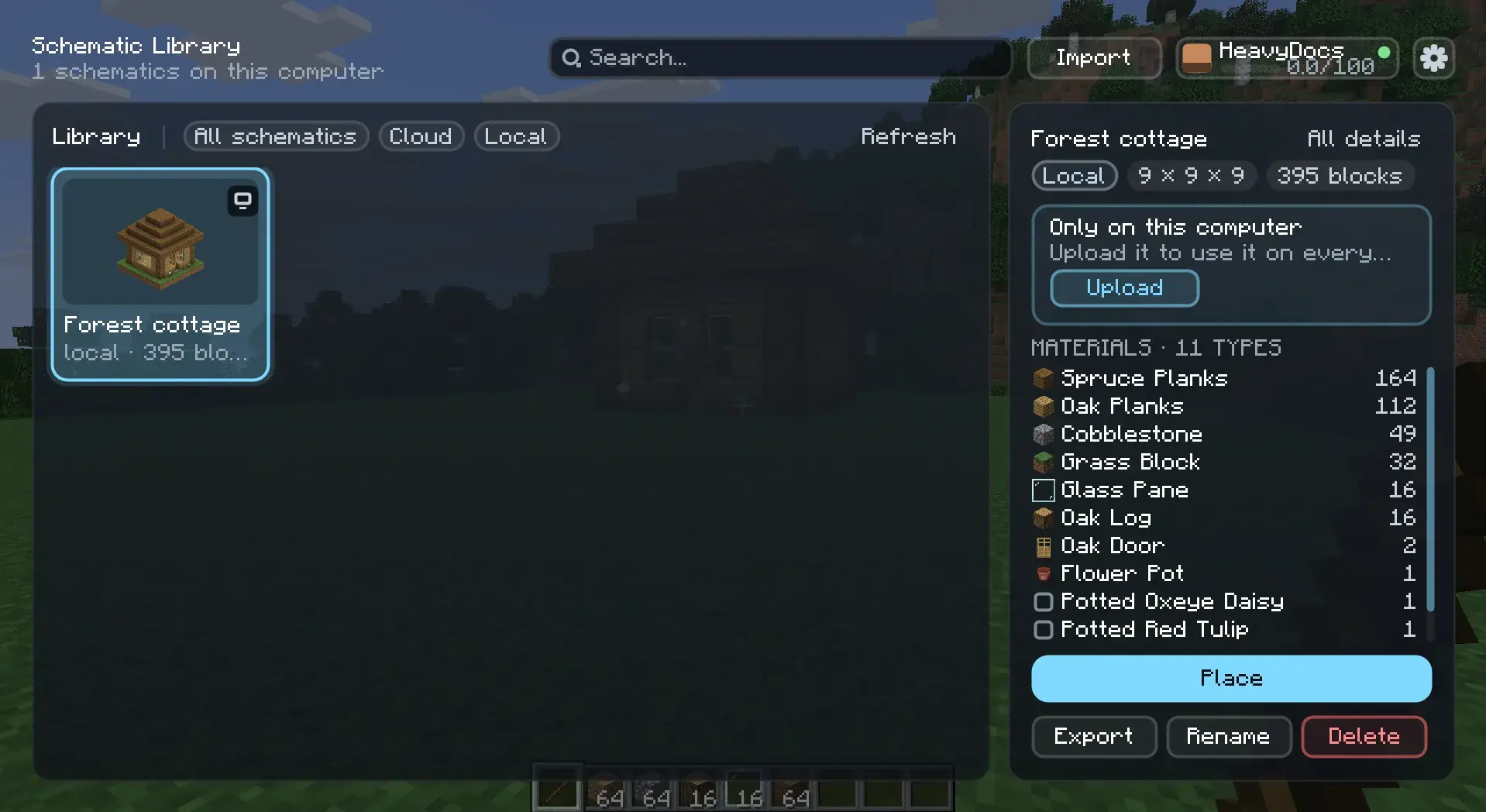
Every schematic in the library is either local or cloud:
- Local schematics are stored on this computer only. You get them by importing files or by capturing a build. The details panel says “Local only: not uploaded to the cloud”.
- Cloud schematics are stored in your Heavymatica Cloud account. They keep every version you upload, and you can use them on any computer and on the website.
The title of the library tells you how many you have, for example “12 schematics · 9 in the cloud, 3 local”. While the cloud is shown, the Cloud and Local filters show only one kind.
When your library is empty, it opens the import screen for you, so you can bring in your first schematic. See Import and export and Capture.
Browsing
Section titled “Browsing”The library works like a file explorer:
- The top level shows your folders as folder cards, then the schematics that are in no folder. Local schematics are always on the top level.
- Click a folder card to open it. You see an Up card, the subfolders, and then the schematics directly in that folder. Each folder card shows how many schematics are in it, subfolders included.
- All schematics shows every schematic at once, whatever its folder, without folder cards.
Each card shows the schematic’s thumbnail (or a placeholder when it has none), its name, its size and its block count.
Searching and tags
Section titled “Searching and tags”Type in the search box to find schematics by name. Upper and lower case don’t matter. Click a tag to show only
schematics with that tag. Search and tag work together: with the folder houses open, the tag spruce chosen and
tow typed, you see the schematics in houses or below it, tagged spruce, whose name contains tow.
Search and tags look in the open folder and every folder below it. On the top level they look everywhere.
Details
Section titled “Details”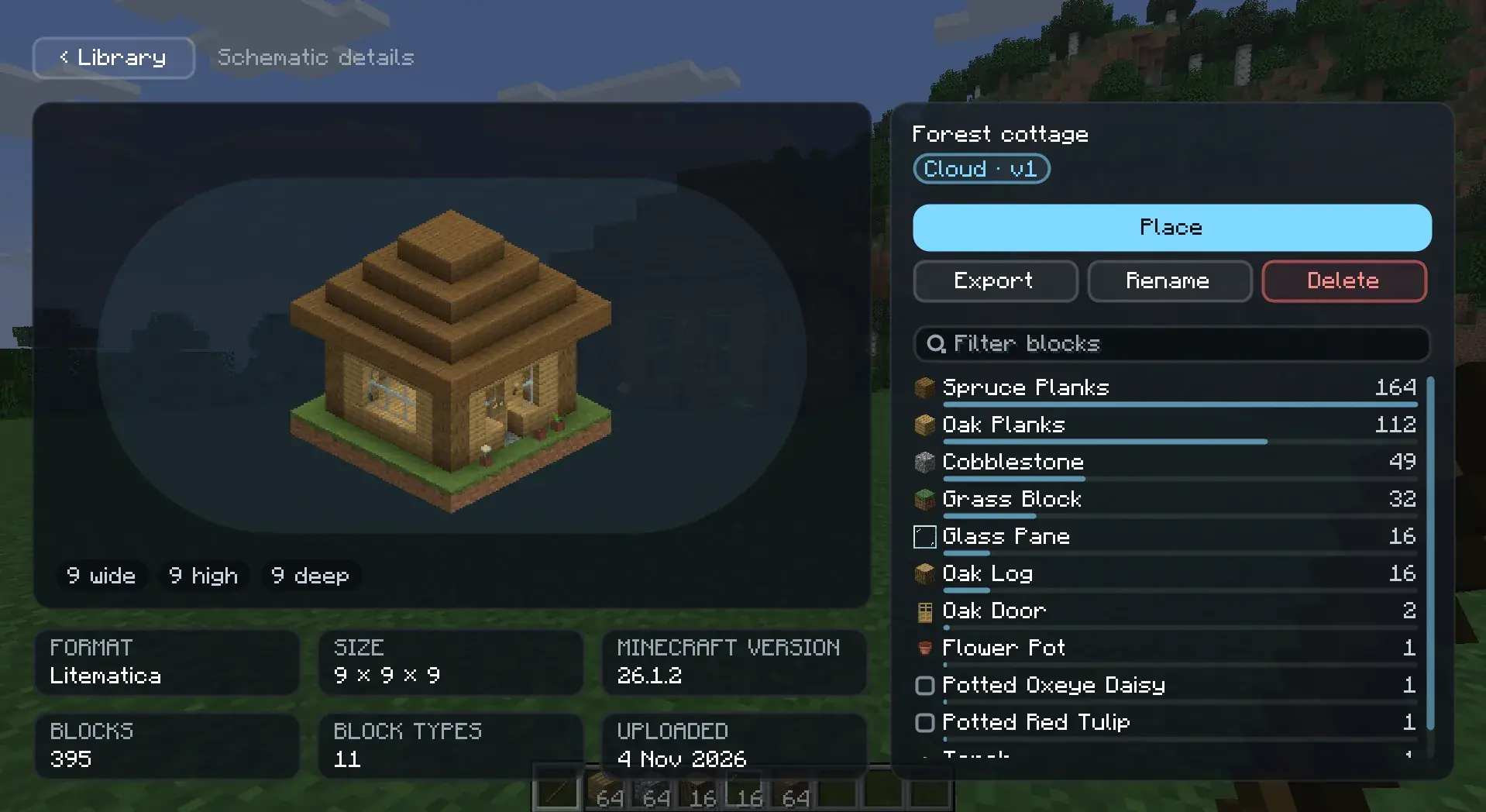
Click a card to select it. Its details show in the panel beside the cards, and the cards stay where they are:
- every version, with its number and upload time, so you can pick an older one
- every block type of the chosen version with its count, most common first
Click All details, or double-click the card, to open the details page. It shows a large preview, the width, height
and depth, the file format, the Minecraft version when the file records one, the block count, the number of block types
and when it was added or uploaded. The block list there has a bar for each block’s share and a filter box: type oak
to see only blocks whose name or ID contains oak. ‹ Library takes you back with the same schematic selected.
Blocks the game doesn’t know, for example from a mod you don’t have installed, are marked as unknown. The details page says how many block types are unknown.
Using a schematic
Section titled “Using a schematic”The details panel offers these actions:
| Action | What it does | Local | Cloud |
|---|---|---|---|
| Place | Closes the library and starts a placement of the chosen version. See Placement. | yes | yes |
| Export | Writes the file to your schematics folder. See Import and export. |
yes | yes |
| Rename | Gives the schematic a new name. | yes | signed in |
| Move | Puts the schematic into a folder. | no | signed in |
| Tags | Sets the schematic’s tags. | no | signed in |
| Del. version | Deletes the chosen version. A schematic keeps at least one version. | no | signed in |
| Delete | Deletes the schematic and all its versions. | yes | signed in |
| Upload | Uploads a local schematic to the cloud. | signed in | no |
An action you can’t use right now is greyed out. Point at it to see why, for example “Sign in to the Heavymatica Cloud to change cloud schematics.”
Folders and tags
Section titled “Folders and tags”- Move asks for a folder path, for example
houses/medieval. A folder that doesn’t exist yet is created. Leave the field empty to take the schematic out of every folder. - Tags asks for tags separated by commas, for example
spruce, wip.
Folders and tags are part of your cloud account, so they only exist for cloud schematics.
Renaming and deleting
Section titled “Renaming and deleting”Delete always asks first and names the schematic or the version. Nothing is deleted until you confirm.
Deleting a local schematic removes it and the library’s copy of the file from this computer. The file you imported it
from, for example in schematics/, stays where it is.
Uploading to the cloud
Section titled “Uploading to the cloud”Drop schematic files from your file manager anywhere onto the library. Heavymatica reads Litematica (.litematic),
WorldEdit (.schem, .schematic) and vanilla structure (.nbt) files. Each file becomes a local schematic first. If
a file is already in your library, Heavymatica asks whether to import it anyway or skip it.
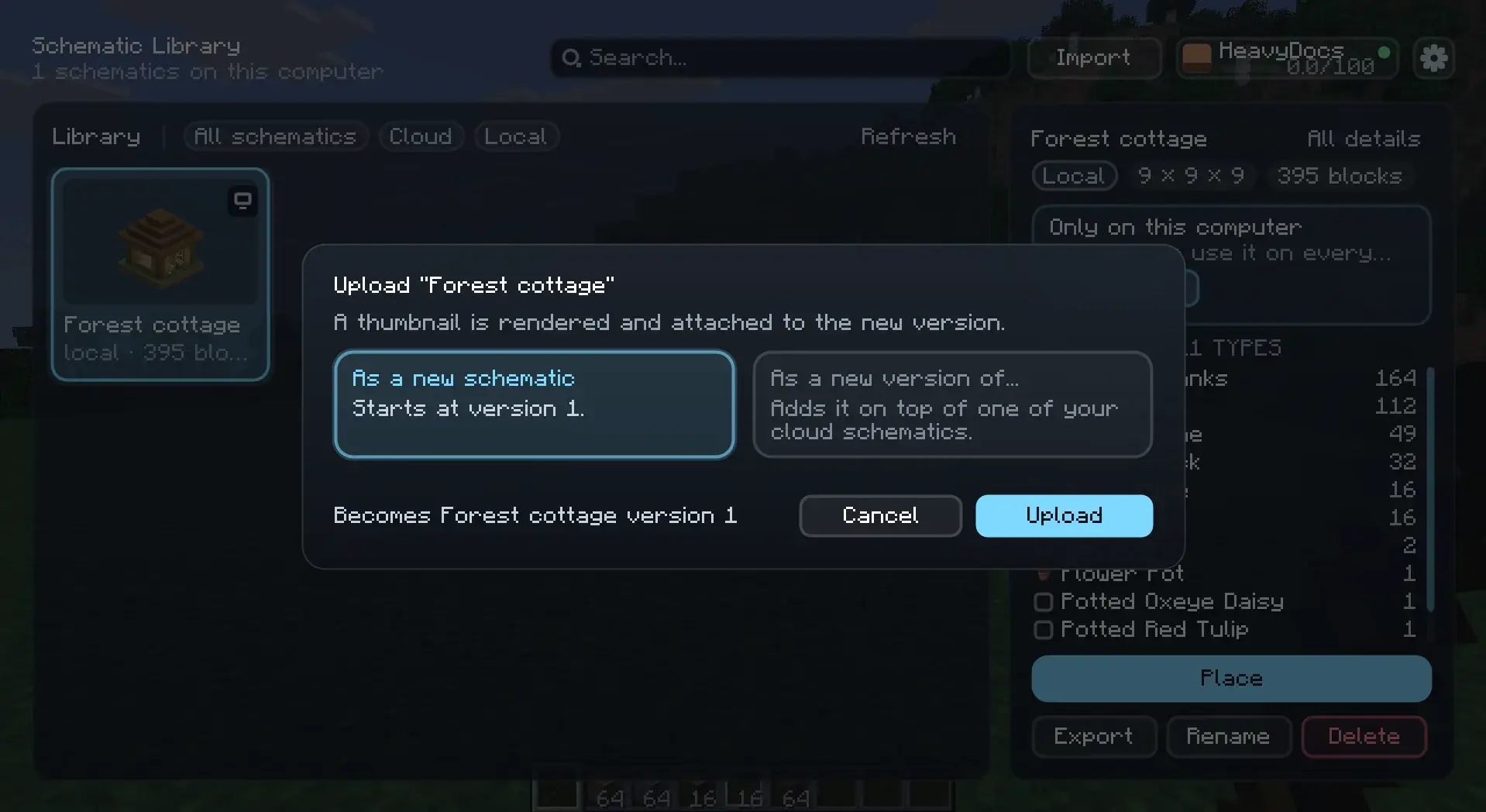
To put a local schematic into the cloud:
- Select the local schematic.
- Click Upload.
- Choose As a new schematic (it starts at version 1) or As a new version of… and pick one of your cloud schematics to add it to.
Heavymatica renders a thumbnail and attaches it to the new version. If the upload fails, or the file doesn’t fit into your storage, the schematic stays in your library as a local schematic.
Files are rejected when they are larger than 16 MiB, wider than 1024 blocks in any direction, hold more than 16,777,216 blocks, or are damaged.
Signing in
Section titled “Signing in”You sign in with the Minecraft account you are playing with. There is no name, email or password to enter.
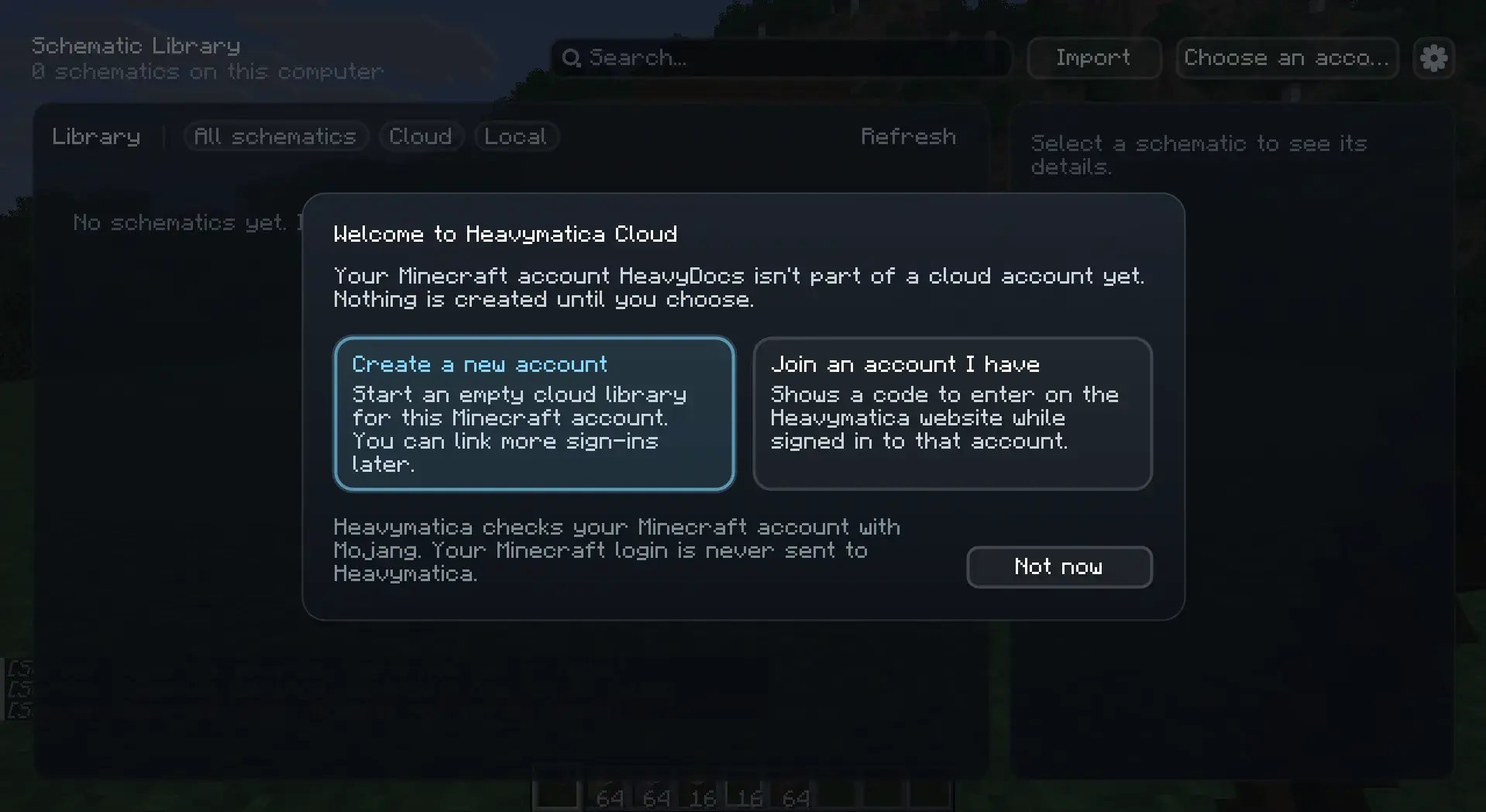
- Open the library and click Sign in at the top.
- The first time, the library asks whether to Create a new account or Join an account I have. Nothing is created until you choose. Not now leaves you signed out.
- After that, you are signed in. The top of the library shows your Minecraft name and how much of your storage you use.
Heavymatica checks your Minecraft account with Mojang. Your Minecraft login is never sent to Heavymatica.
You stay signed in after a restart. If you start the game with a different Minecraft account, you are signed out until you sign in with that one. When your session ends, for example after a long time away, the library says “Signed out, sign in again”. Your game is never interrupted by it.
Cloud sign-in needs a Microsoft-authenticated Minecraft account. It doesn’t work in an offline-mode game.
Your account
Section titled “Your account”When you are signed in, click your name at the top of the library to open your account:
- Storage shows how much space you use out of your quota, in MiB. The same bar is under your name in the library.
- Sign-ins on this account lists every Minecraft account and website sign-in that opens this library, with the one you use marked In use. Unlink removes one after you confirm. The last sign-in can’t be unlinked, and unlinking the one in use signs you out here.
- Link another sign-in shows a link code (see below).
- Sign out removes the saved session and the list of your cloud schematics from this computer. Your local schematics stay.
Link codes
Section titled “Link codes”A link code connects another sign-in to your account, so that one library opens from all of them: in the game, on the website, and from your other Minecraft accounts. Codes are always shown in the game and entered on the website. You never type a code into the game.
To add your GitHub sign-in from the website:
- In the library, click your name, then Link another sign-in. The game shows a code such as
K7QM-3XRP, a QR code and how long the code is valid. A code lasts 5 minutes. - On the website, sign in with GitHub and enter the code. Or scan the QR code with your phone: it opens the website with the code filled in.
- Back in the game, the screen says who wants to link, for example “the GitHub sign-in steve-builds”. Click Confirm if it is yours, or Decline if it isn’t.
Nothing is linked until you confirm in the game. When the time runs out, the screen offers a New code.
To use the same library from a second Minecraft account, start the game with that account, sign in and choose Join an account I have. The game shows a code. Enter it on the website while signed in to the account you want to join, then confirm in the game. The library then shows that account’s schematics.
Two accounts that both already hold schematics can’t be joined.
Offline and the local cache
Section titled “Offline and the local cache”Every cloud version you place or export is downloaded once and kept on your computer, together with its thumbnail. The next time you use it, it comes from there and nothing is downloaded. Heavymatica checks each file, and a damaged one is downloaded again.
The cache is in heavymatica/cache in your game folder and stays under 1 GiB by default. When it is full, the
schematics you haven’t used for the longest time are removed from it. Your local schematics are never removed. You can
change the size with Cache size in MiB in the settings.
When the cloud can’t be reached, the library shows the last list of your cloud schematics it knows, with “Offline: showing the last known list”. Versions in the cache still work. The others say “Not available offline: needs a connection”, and Place and Export are greyed out for them. Click Refresh to try again.
The cloud is not open yet
Section titled “The cloud is not open yet”While the Heavymatica Cloud is in alpha, it may not be open to the public. When you open the library, Heavymatica asks the cloud whether it is open. That question carries nothing about you. Until the answer is yes:
- the library shows your local schematics only
- there is no Sign in button, no account and no error message
- everything local works: import, capture, place, export, rename and delete
If you signed in before, for example as a tester, you keep seeing your cloud schematics either way.
The Heavymatica Cloud setting in the Library section of the settings (access under [cloud]
in the settings file) decides this:
| Choice | Value | What it does |
|---|---|---|
| Automatic default | AUTO |
Asks the cloud whether it is open when you open the library. |
| Always | ON |
Shows the cloud parts without asking, for testers. |
| Never | OFF |
Hides the cloud completely. Heavymatica makes no network calls at all. |
If the library says “This Heavymatica is too old for the cloud. Please update the mod.”, install the newest version. Until then you can’t sign in, and your cloud list shows as offline.
Settings
Section titled “Settings”The gear button at the top of the library opens the Heavymatica settings. Done brings you back to the library.